

Concepts and web UI
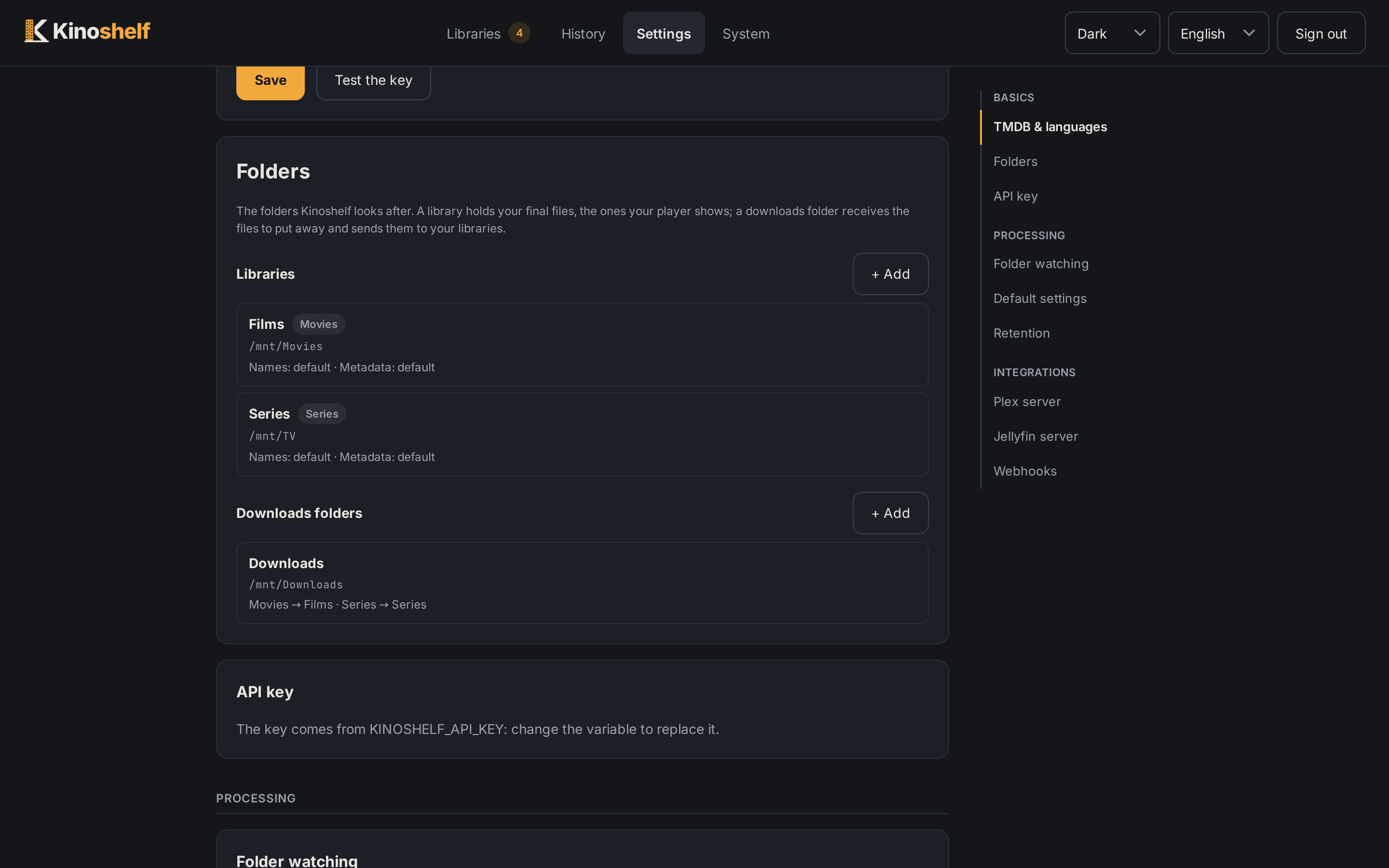
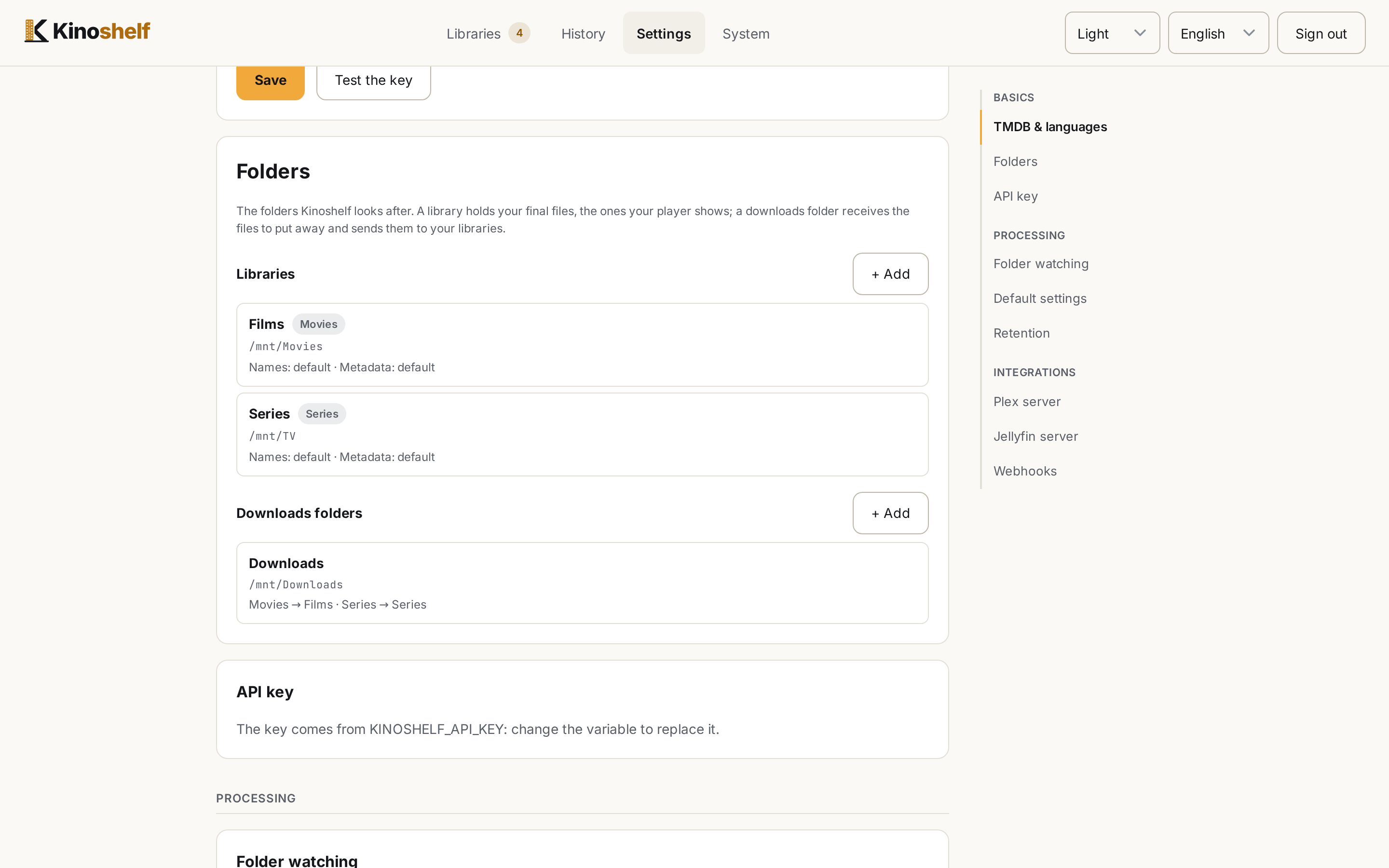
The server serves the web UI on its own port (http://localhost:8484), in French or English (follows your browser, switchable in the header), with a dark, a light or a system theme (the header's theme menu).
Sign in with the API key: the browser keeps a session cookie for 7 days, so the key itself is not stored.
The header has four entries: Libraries, History, Settings and System. The Libraries page and the System page have a chapter of their own; this one covers the concepts, the welcome, Arrivals, History, the activity panel and the Settings.
On a screen narrower than 1080 px the theme, the language and Sign out fold into a ⋯ menu at the end of the header (Escape or a click elsewhere closes it), so the header stays one line, or two on a phone.
How a file is handled
Every file goes through the same four steps, and nothing touches the disk before the third is validated:
- Parse: the file name (and its folders) is read for a title, a year, a season and episode, a picture size, a language, an id… A TMDB id (
{tmdb-<id>}) or an IMDb id ({imdb-tt…},[imdbid-tt…]) in the name is only a hint: the work it names joins the candidates, and counts only if its title, year and type agree. When it designates another work than the best match, nothing is decided automatically. - Match: TMDB candidates are searched and scored. A score at or above the threshold (85 by default) is a match with confidence; below it, or when two candidates are too close, a human decides.
- Plan: the new name, the NFO and the images to write are computed, and conflicts are flagged. This is what the preview shows.
- Execute: the plan runs and is recorded in a journal, which is what makes every batch undoable.
Kinoshelf's guarantees hold in every screen, the CLI and the API:
- a preview before every write;
- an existing file is never overwritten: the planner flags it, the executor checks it again right before writing, and the file primitives refuse to replace (the only overwrites are the explicit, journaled ones, such as changing an image, which sets the old file aside);
- no silent copy when a hardlink is impossible: it fails with an explicit error;
- every batch can be undone, and a file that changed since is left alone.
Two kinds of folders
Kinoshelf distinguishes where files arrive from where they belong.
- A library (movies or series) is organized in place. Kinoshelf scans it, renames what does not follow the profile and writes the missing metadata. Its files never leave it.
- An downloads folder (your downloads) is a source. Each file is identified, then transferred into a library by copy, hardlink or move.
libraries:
  - { id: films, name: Films, type: movie, source: /media/Movies }
  - { id: series, name: Series, type: series, source: /media/TV }
  - {
      id: downloads,
      name: Downloads,
      source: /downloads/complete,
      into: { movie: films, series: series },
    }
A folder has either a type (library) or an into (downloads folder), never both. A downloads folder may send to one kind only: a file of a kind with no library waits in Arrivals, with the reason and a link to the Settings, and is never sent to another library. Both are set from the Settings, with a path picker on the server's disk. A folder cannot contain another one, or lie inside it: /media as a downloads folder beside /media/movies as a library is refused, since every file of the library would be offered as an arrival. See Configuration for every key.
Welcome
On a new install, / shows a setup in four steps: the TMDB key (your own, tested as soon as you enter it), Plex or Jellyfin, your movies and series folders (the first libraries, organized in place; give only the one you keep if you have movies or series alone; it also offers IMDb ratings, off unless ticked) and a downloads folder pointing at them (watched, or scanned once). Each step ticks itself once the configuration says so, and the server remembers what you skipped. The app then opens on Libraries, or on Arrivals when the setup created a downloads folder: that is where what it picks up waits.
If the first job fails, it is not lost: the History lists it with its cause.
Arrivals
The Arrivals tab of the Libraries page holds the files that wait for you. A library organized in place never lands here. The files are in three states:
- Ready to transfer: matched with confidence (a score at or above the threshold), but not moved because the analysis only reads. That is what a watched folder or a scan does while the setting "Transfer what is identified with confidence" is off. Transfer runs the plan as it is, or pick another candidate, library or size and Validate instead; Transfer all the files that are ready (at the top) starts them all, even those the list has not loaded yet.
- To validate: Kinoshelf could not place the file with confidence, or a conflict or a failed transfer needs a look.
- Not recognized: nothing was found.
For each file you see its TMDB candidates and their score, a manual search, and the destination a choice would give. When the best candidate is under 100 %, the panel says why: the title, year or type differs, the country or the installment number (Part 2) does not match, another candidate is almost as good, or an id in the name points elsewhere. When TMDB lacks the season and episode of some files of the series, the panel lists them grouped by season, with a link to each season on TMDB (or says the season does not exist there): a perfect title still waits for validation, because the numbering may differ.
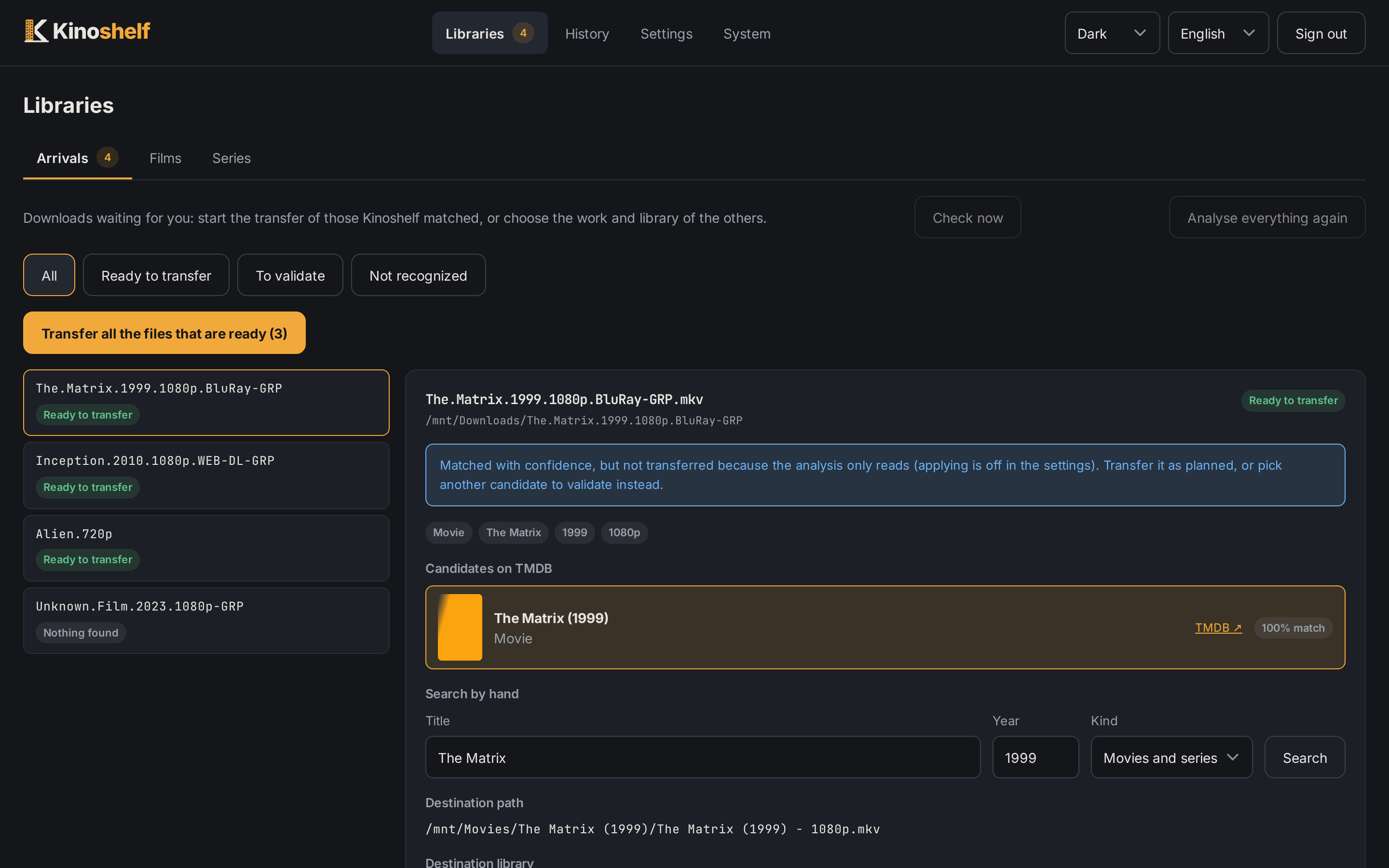
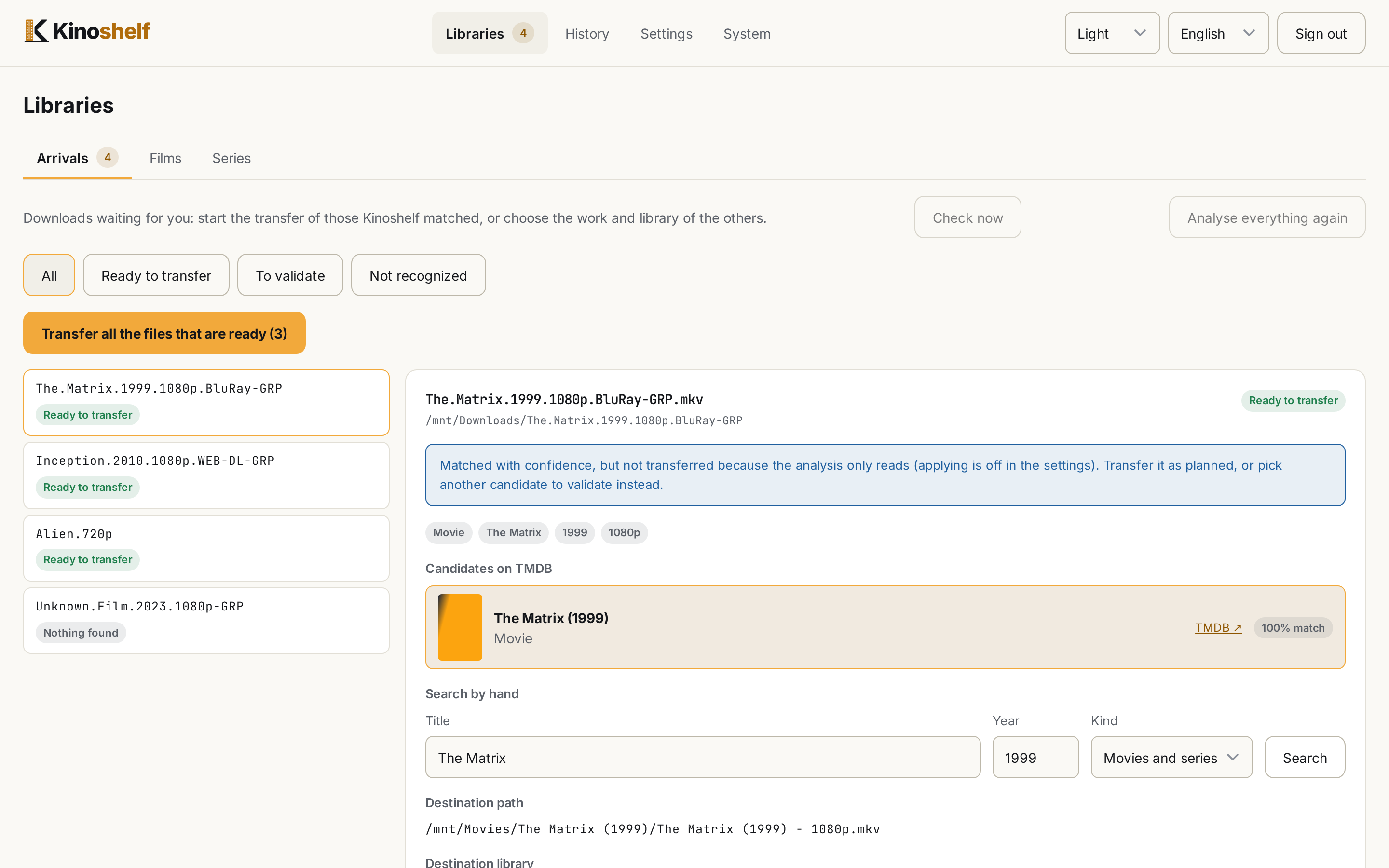
- Validate sends the file to the library you pick (by default the one of its kind in the arrival folder's
into; any library of the work's kind otherwise). The choice is for that file and the release mates that follow it: the next arrival of the same work takes the folder'sintoagain. Validation runs in the background (the row says "Validating… 3/20"). - Ignore sets the file or its release aside.
- A series is validated as a release, not file by file: the episodes of a folder vote on the series title, one search is made for all of them, and the other episodes of the same release follow your choice. A folder holding several series is split into clusters, each validated as a whole; the other clusters are listed under the release.
- When the file name gives no picture size and another version of the work is in the way, set the size by hand while validating (or let Kinoshelf read it with
ffprobe, see Default settings). - Check now, at the top of the tab, scans the watched folders without waiting for files to settle (disabled when no folder is watched).
- Analyse everything again starts over: every file of the downloads folders is analysed again, except those already waiting here. Useful after emptying a library.
How a download gets here is explained in Getting downloads in.
History
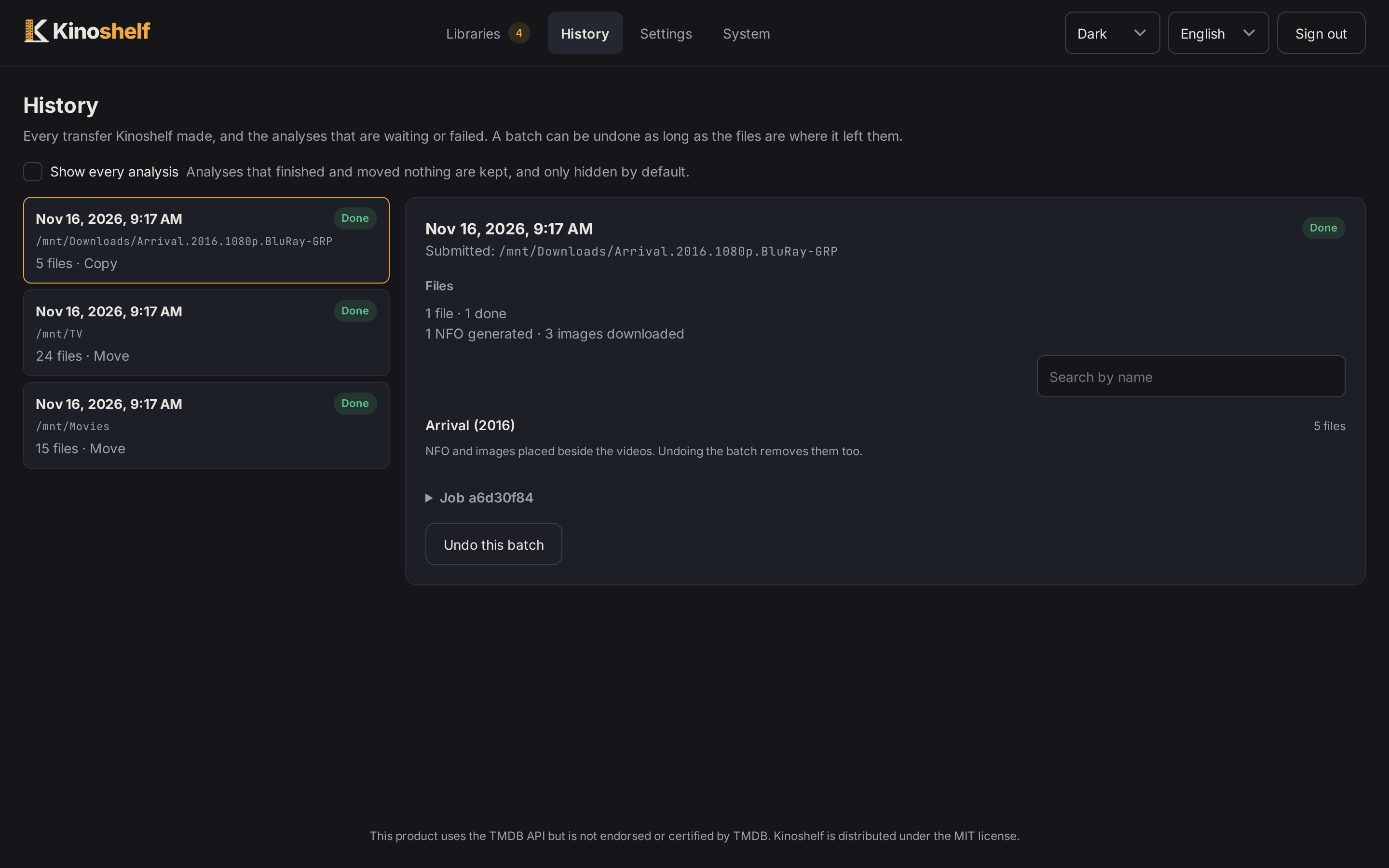
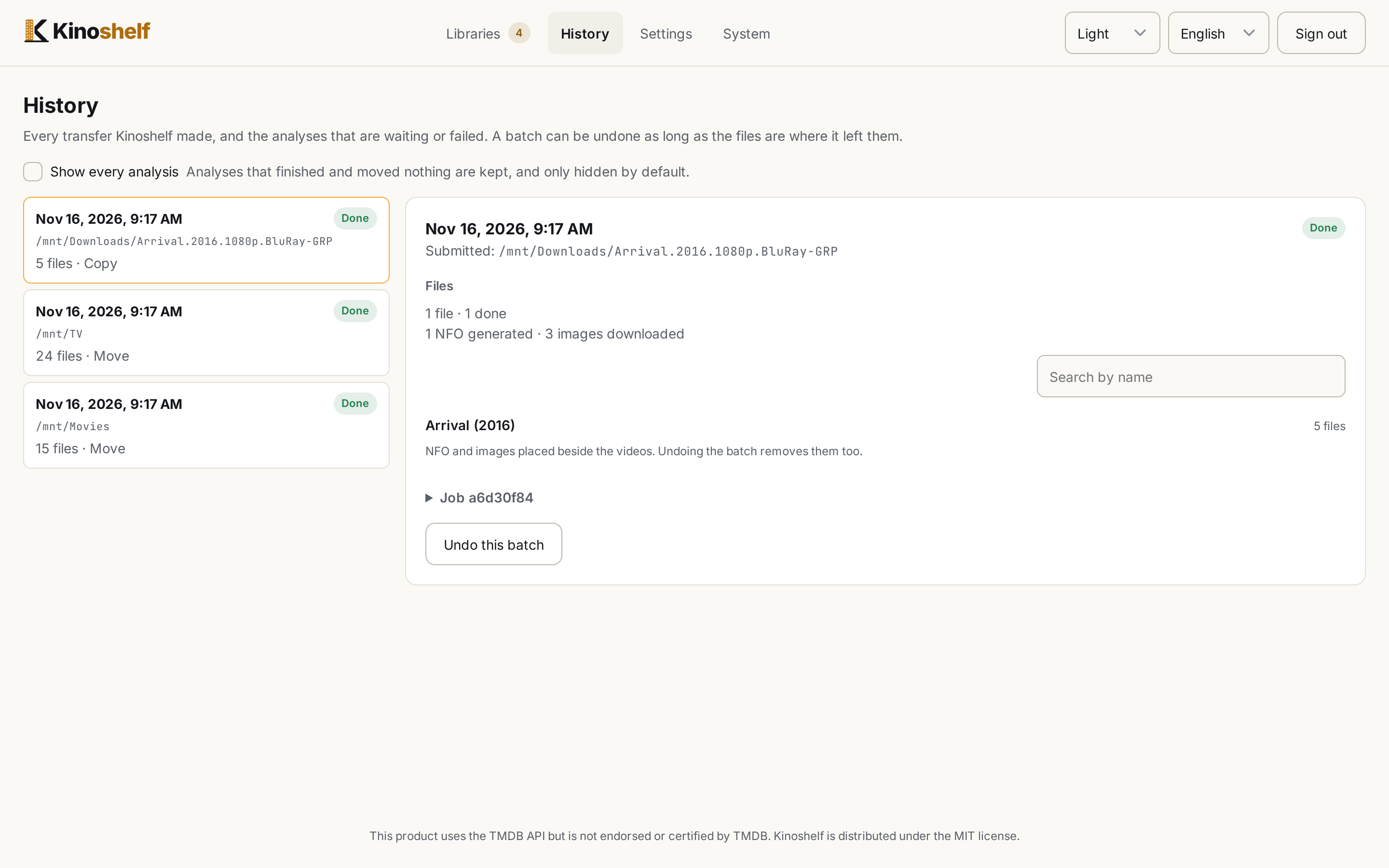
One list for what Kinoshelf did:
- a batch is a line (a transfer, a rename, a refresh, an image change, a tidy-up…), with its files, what was written beside them (NFO, images) and what was set aside (an NFO written again, for instance to add a rating, reads "NFO replaced", and undoing the batch puts the old file back);
- a job is a line only while it has no batch: waiting, running, failed or cancelled, with its cause, the settings it ran with and Send again. A job that made a batch is folded into it.
- Analyses that finished and moved nothing are hidden until you tick Show every analysis. They stay in the database until the daily purge (see Retention), but the journal is never purged: any batch stays undoable.
Undo shows what would be restored (a check first), then asks for confirmation, and runs in the background with a progress bar you can leave and come back to. A file moved or replaced since the batch is left alone, a copy or hardlink whose original is gone is kept (it is the only one left), the metadata files the batch wrote are removed, and the folders it created are pruned.
The selected line is in the address (/history/<id>), so you can link to it.
Activity panel
At the bottom right of every page, a pill says how many tasks run in the background. It unfolds to a line per task: title, phase, progress bar, current file and a link to where it is followed; a running scan has a Cancel button. It lists scans, transfers, undos, arrival validations, tidy-ups, database backup and compaction, emptying replaced/, sending collection images, downloading IMDb's ratings and adding them to the NFO. A finished task stays a few seconds (ten minutes when it failed) and can be closed by hand. A watched folder queues one scan per release, so the scans of one folder that went well fold into a single line (the one running, else the latest) that counts them; a failed one stays apart, with its own cause.
Settings
Everything is saved in config.yaml and applies at once, without a restart. Secrets are never shown again: a field says that a value is set and leaves it alone when empty. A value forced by an environment variable (TMDB_API_KEY, KINOSHELF_API_KEY) is disabled with an explanation, and the API refuses to change it.
TMDB and languages
- TMDB key: your own, from themoviedb.org, with a test button. None is ever embedded in Kinoshelf.
- Language: the language of notifications and of the tool.
- TMDB titles language (advanced): a code such as
froren-US; empty follows the language.
Folders
Libraries (your final files) and downloads folders (the files to put away), added with a server-side path picker (a browser cannot see the server's disk, and in Docker only mounted folders exist). A library sets its own names (the two namings, or Custom masks: see Output options), metadata options and threshold; an downloads folder sets its mode (copy, hardlink, move), its destination libraries and whether it is watched. Ids are generated from the name and never change; two libraries cannot share a source, nor contain one another. A library an downloads folder points at cannot be deleted.
Folder watching
How long a release must stay unchanged before it is submitted, a polling interval for network shares and whether to transfer what is matched with confidence. See Getting downloads in.
Default settings
Used by libraries that do not set their own, and for a folder outside any library (a path you submit, or scan and process on the command line):
- Names and Metadata files: see Output options (the examples under Names show a file arriving with its picture size, which is added whatever the choice);
- File mode: automatic (move when the destination is the source folder, copy otherwise), copy, hardlink or move;
- Automatic threshold (0 to 100): a match scoring below it waits in Arrivals;
- Read the picture size with ffprobe (on by default): when a name says no size and another version is in the way, the size is read from the file so both can be kept side by side;
- Allow image addresses on the local network (off by default): see Changing an image;
- Write IMDb's rating in the NFO (off by default, and nothing is downloaded while it is): see IMDb ratings.
Retention
What the System page's Maintenance tab keeps: how many database backups (3 by default) and how many days before the files set aside are emptied (30 by default, 0 for all). These change nothing until the action is run. Settled jobs are forgotten after retentionDays (30; 0 keeps all, see Configuration).
Plex, Jellyfin and webhooks
- Plex: sign in with your Plex account (no token to copy, the access renews itself) and pick a server, or paste a token and an address. An optional library number forces one Plex library.
- Jellyfin: address and token.
- Both have a path mapping for when the media server sees the folders under other paths.
- Webhooks: generic, Gotify, ntfy or Discord, each told about transferred files, failures and/or files to validate. An address stays secret once saved. Send a test notification checks every target.
Details in Configuration.
API key
The key used to sign in and by scripts. Replace it if it leaked or was lost: scripts using the old one stop working at once, the browser stays signed in.
Good to know
- The screens update by themselves when a job ends or a file is validated elsewhere.
- Posters come through the server, which fetches each one from TMDB once and keeps it in
/config/images: your browser never contacts TMDB. - Filters, sort and open trees live in the address, so a link or a reload keeps them.